To create a seating chart using Roll Call Attendance:
Note: Students that have dropped the course will not be removed from the attendance list for record keeping purposes. Seating charts are useful to make a list of students currently enrolled in the course.
Note: Creating a seating chart will not create an entry in the gradebook but taking attendance will. Please refer to this guide as needed for more details: Step by Step: Disable Roll Call Attendance from Contributing to Total Grade.
Step 1: Access a course.

Step 2: In the Course Navigation click or tap Attendance.

Step 3: Click or tap the Class tab.
Step 4: Click or tap Edit Seating Chart
Final Step: Click or tap student name to select. Drag and drop student to desired square in seating chart.
Note: Students can be easily arranged into new configurations within the seating chart by dragging and dropping. Once a student is no longer actively enrolled in the course, drag and drop the student to the Remove students from the seating chart by dragging them here section. 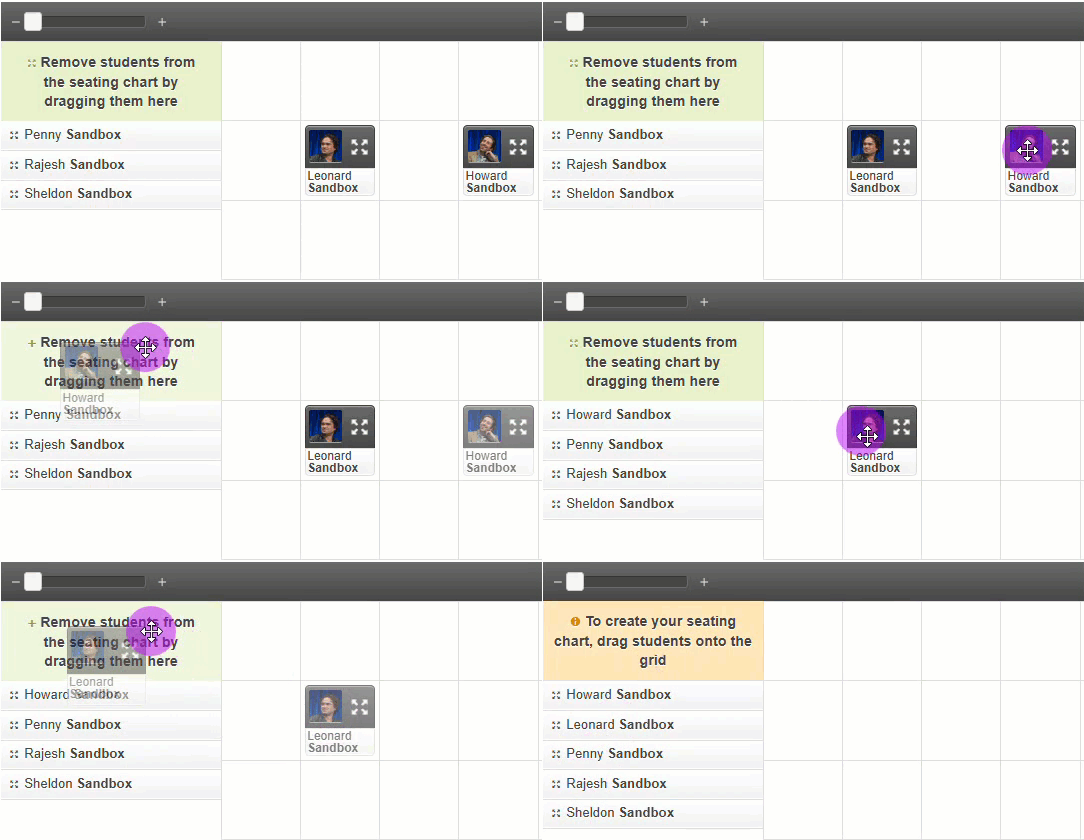
Comments
2 comments
I have been using this seating chart for a while now. It helps me to learn names and take quicker attendances. However, when a student drops the course they disappear from the chart.
Good review. I have never used this before.
Please sign in to leave a comment.